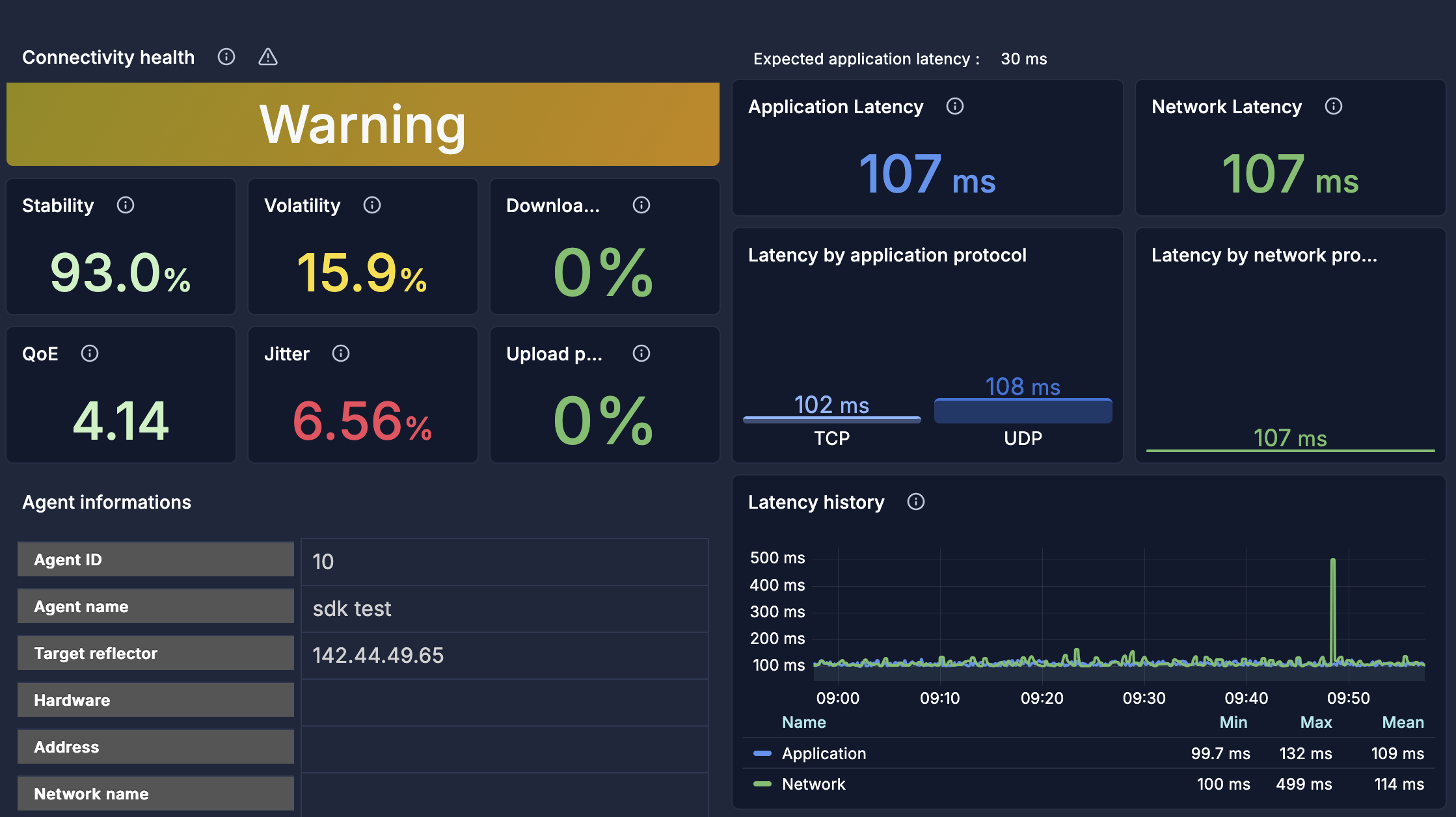
QoS-Agent SDK Installation
Prerequisites
- Cradlepoint modem supporting SDK apps
- Access to the NetCloudOS environment of your modem
- The QoS-Agent tarball file
Configure the environment variables
- Log into NetCloud Manager.
- Click DEVICES in the left-side navigation panel.
- Select the device from the Devices page.
- Click Configuration and Edit.
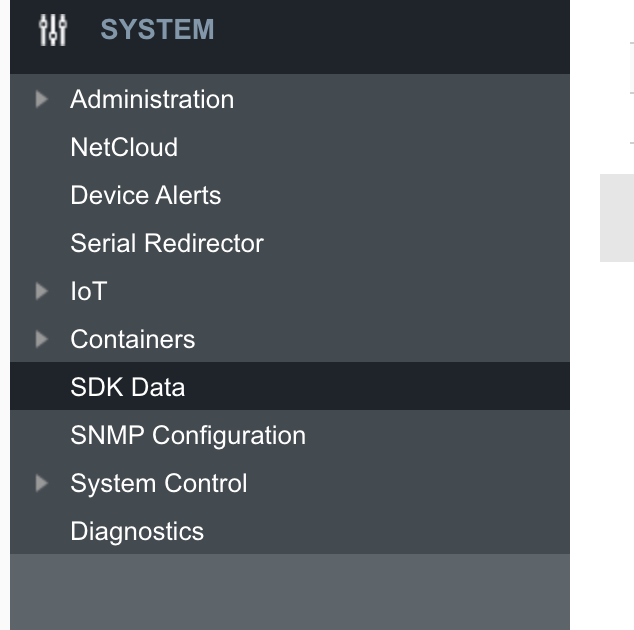
- Click SYSTEM in the Edit Configuration window.
- Click on SDK Data.
- Click Add to add a new value, you will need to add 6:
| Parameter | Required | Description |
|---|---|---|
LTI_agent_id |
Yes | Desired agent ID. The ID must be an integer. |
LTI_customer_id |
Yes | Desired customer ID. The ID must be an integer. |
LTI_license_key |
Yes | Your LTI license key |
LTI_analyzer |
Yes | IP address of the host where the analyzer is running |
LTI_reflector |
Yes | IP address of the host where the reflector docker is running |
LTI_agent_name |
Yes | User-friendly agent or site name used in dashboards. String, max 255 characters |
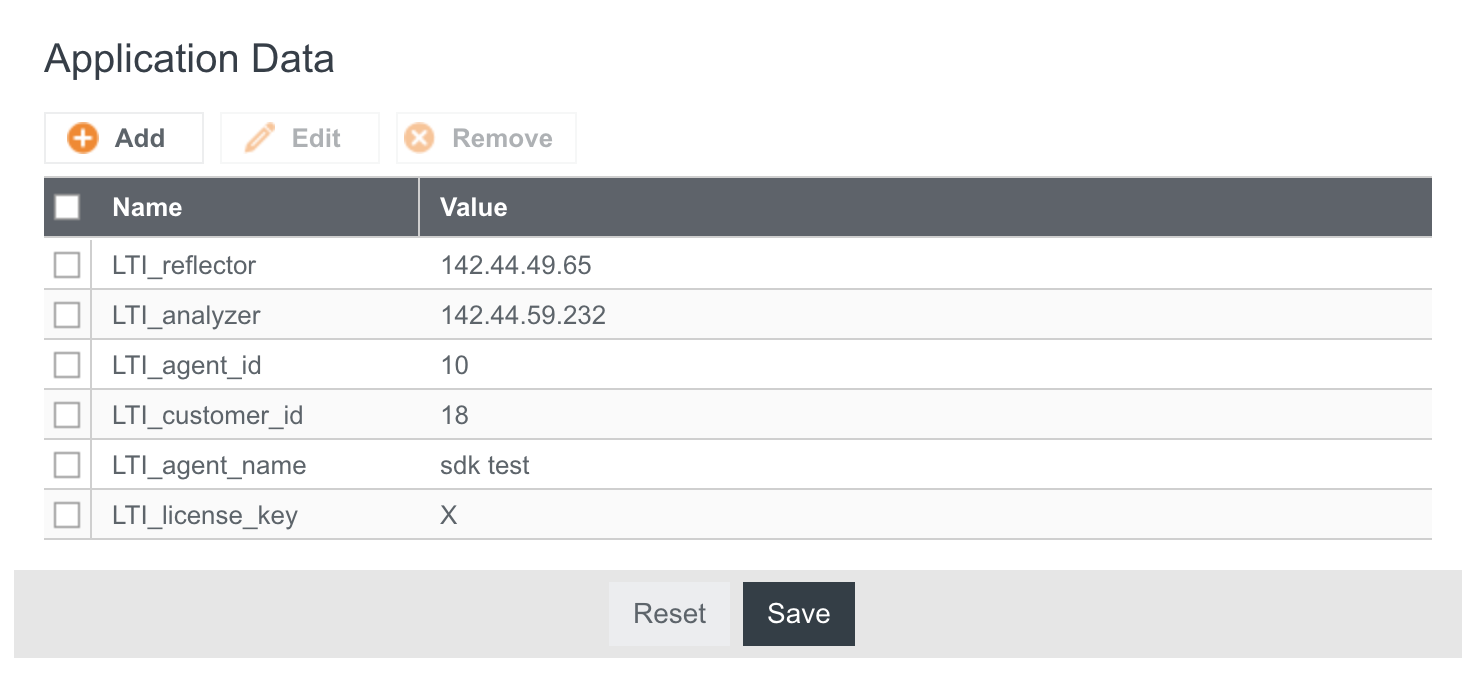
- Then click Save on each.
- You can now hit Save and Commit Changes.
Setup the modem
In order for the Cradlepoint modem to be able to use SDK applications, it needs to be part of a group.
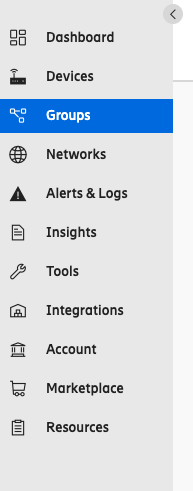
- Go to the Groups tab in the sidebar.
- Click on Add.
- Fill the form to create a group and hit Save.
- Then go to the Devices tab in the sidebar
- Select the modem you want to install the SDK on and click on Move.
- Select the group you created for the SDK and move your modem there.
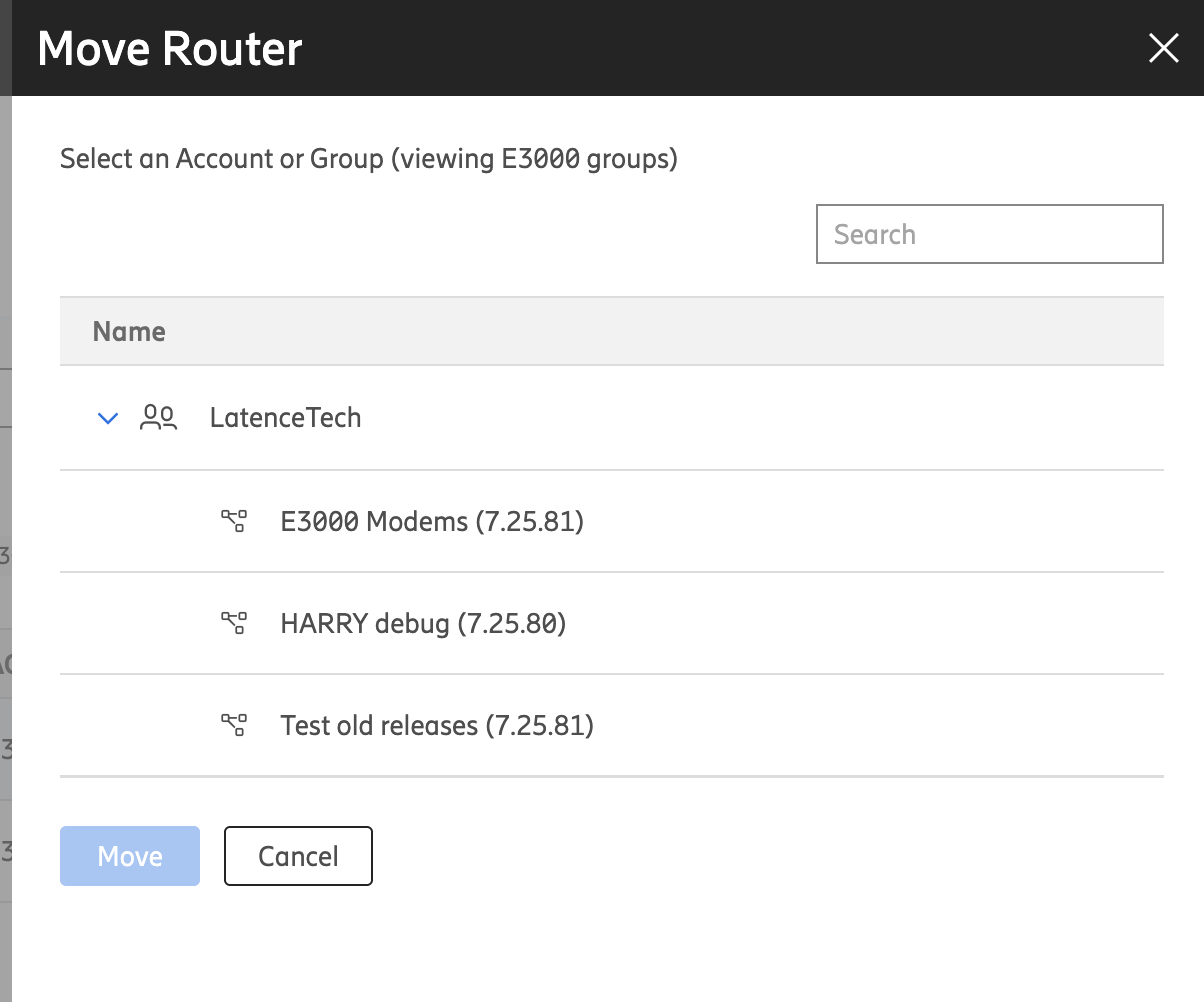
- Now that your modem has the environment variables and is in a group, it is ready to install the agent.
Installation of the QoS-Agent
- In the sidebar, click on the Tools tab.
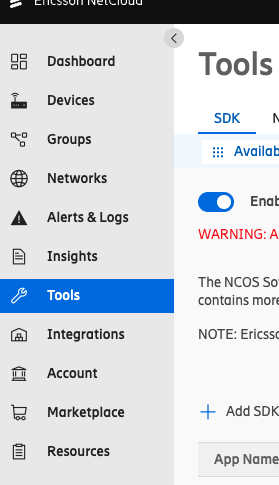
- In the SDK section, enable the NCOS SDK.
- Then hit the Add SDK Application button.
- Upload the tarball of the QoS-Agent.
- Click on the Manage Installation Locations button.
- Select the group of your modem, click the + sign and select version 1.0.0.
- Hit Close.
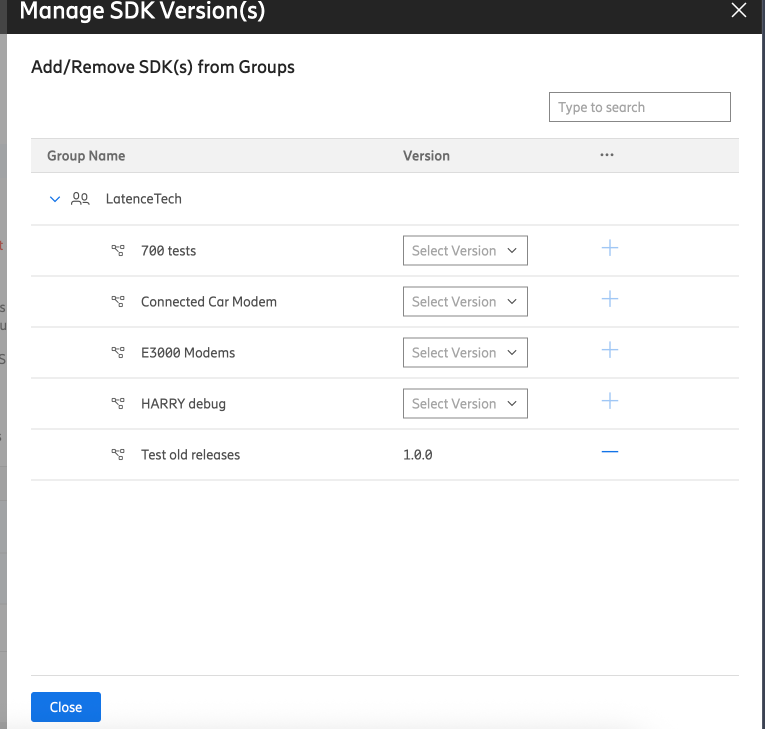
- You should see the qos_agent sdk being deployed into the group.
- Wait a minute or two to see the data coming into the dashboard you specified into the environment variables.

- Go back to the Devices tab in the sidebar and click on the modem you installed the SDK application on.
- Click on Extensibility tab and SDK section.
- You should see the agent running.
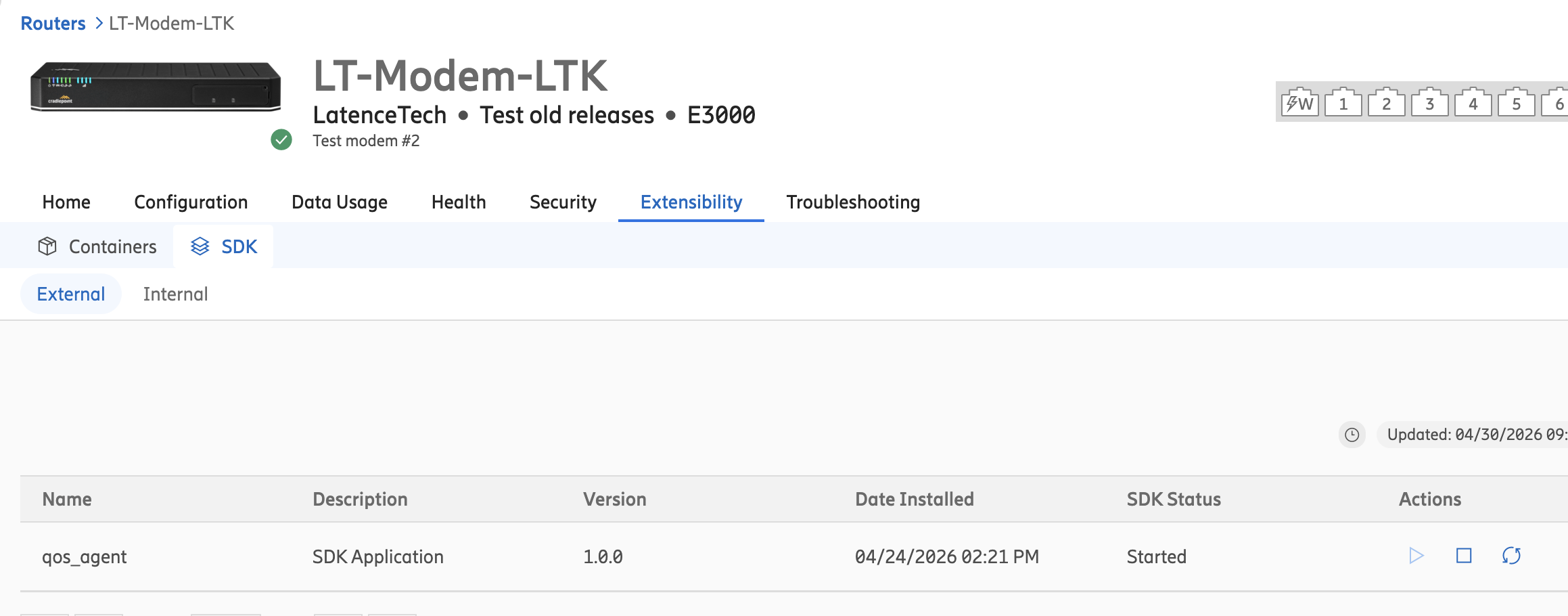
- Once the agent is running, you should see data appearing in the dashboard