Elina Traffic Shaper
Introduction
LatenceTech Traffic Shaper can be used to disturb or “shape” the traffic of an IP network i.e. modify the connectivity characteristics of the host network interface by introducing latency, instability through packet duplicate or loss, reducing available bandwidth or throughput. The tool shall be used in conjunction with LatenceTech’s QoS-Agent and Analyzer platform for real-time monitoring, prediction and optimization.
Traffic Shaper is the simple web impairment tool (Docker). For richer CLI-based scenarios (profiles, batch sequences, interactive control), see Elina Traffic Controller.
How it works
Traffic Shaper runs as a privileged Docker container. The web UI applies Linux tc / netem rules on the host, targeting the docker0 bridge. Install it on the same host where the QoS-Agent is running so the Agent measures the path while Shaper degrades it. Changing parameters immediately adds limits and constraints on that host.
Security: The container needs --privileged and --pid=host. The UI has no authentication — keep port 81 reachable only on trusted networks.
How to use
LatenceTech Traffic Shaper shall be installed and configured on the same host where the QoS-Agent is running. Changing connectivity parameters on the tool will automatically add limits and constraints to the network interface of the host on which the tool is installed.
Setup
You will need to have the port 81 opened on your machine.
You can install the trafficshaper using this command on your agent:
sudo docker run -d -p 81:80 --privileged --pid=host registry.latence.ca/internal/trafficshaper
Or use this yaml file:
wget https://api.latence.ca/internal/trafficshaper.yaml
And launch with this command:
docker compose -f trafficshaper.yaml up -d
Once launched, you can access it at: http://machine_ip:81/netem
The UI shows a NETEM ACTIVE / NETEM INACTIVE status indicator.
User interface
For each connectivity parameter, use the + or - buttons to increase or reduce the value, “R” to reset to the default value or “max” to set it to its maximum. Adjusting the value of a parameter will ADD this value to the existing host default level.
For example, if your host experiences an average latency of 25 milliseconds (ms) measured with ICMP, adding +20ms to the “added latency” parameter will push the new latency level to about 45ms. The approach is similar for Jitter. For the Throughput parameter, the default is “unlimited”. It can be reduced using the “-” by selected steps in of about 50 Mbit/s.
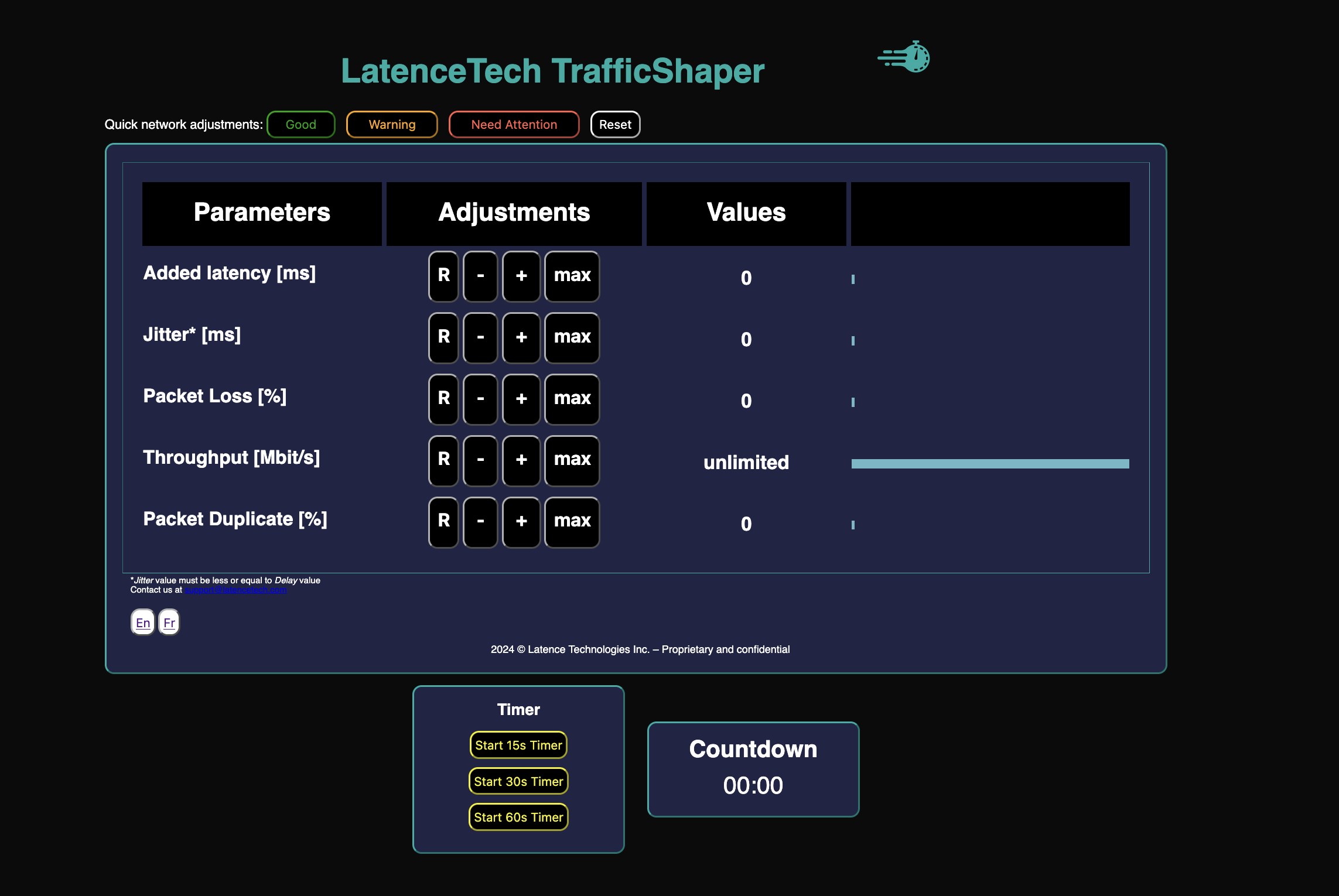
Parameter limits
| Parameter | Range | Step | Notes |
|---|---|---|---|
| Added latency | 0–1000 ms | 10 ms | Additive to the real path delay |
| Jitter | 0–20 ms | 1 ms | Must be less than or equal to the current delay |
| Packet Loss | 0–10% | 1% | |
| Packet Duplicate | 0–10% | 1% | |
| Throughput | Stepped list (see below) | — | Default is unlimited; cannot exceed the physical NIC rate |
Throughput steps: 5k, 10k, 20k, 100k, 500k, 1M, 5M, 10M, 20M, 30M, 40M, 50M, 100M, 150M, 200M, 250M, 300M, 500M, 750M, unlimited.
Quick Network Adjustments
Use the Quick Network Adjustments buttons to apply typical presets:
| Button | Effect |
|---|---|
| Good (green) | 0 ms delay, 50 Mbit/s throughput, 0% loss |
| Warning (yellow) | 300 ms delay, unlimited throughput, 0% loss |
| Need Attention (red) | 300 ms delay, unlimited throughput, 2% loss |
| Reset | Clears impairments (0 delay/jitter/loss/dup, unlimited throughput) |
You can also reset a single parameter with its “R” button.
Note: A background job may periodically clear impairments (about every 30 minutes). For long tests, re-check that netem is still active.
Visualisation of results in LatenceTech Dashboards
Traffic Shaper does not connect to the QoS-Agent or Analyzer. Run it alongside an Agent on the same host: change parameters in the Shaper UI and observe latency, jitter, and loss update on the Analyzer dashboards within a few seconds (depending on connectivity).
Disclosure
LatenceTech would like to thank Orange Group for the initial idea and early implementation of this tool.
No claims, representations or warranties, whether express or implied, are made by our company as to the safety, reliability, durability and performance of this tool. Usage of this tool is primarily for testing purposes. Remember to reset the parameter values following each test to restore the default connectivity level of your host. Refer to www.latencetech.com/eula for the End User License Agreement.