QR Code Configuration Generator
Welcome to the QR Code Configuration Generator! This tool allows you to quickly fill out deployment parameters, import existing configurations, and generate an optimized QR code that can be scanned by your network agent devices.
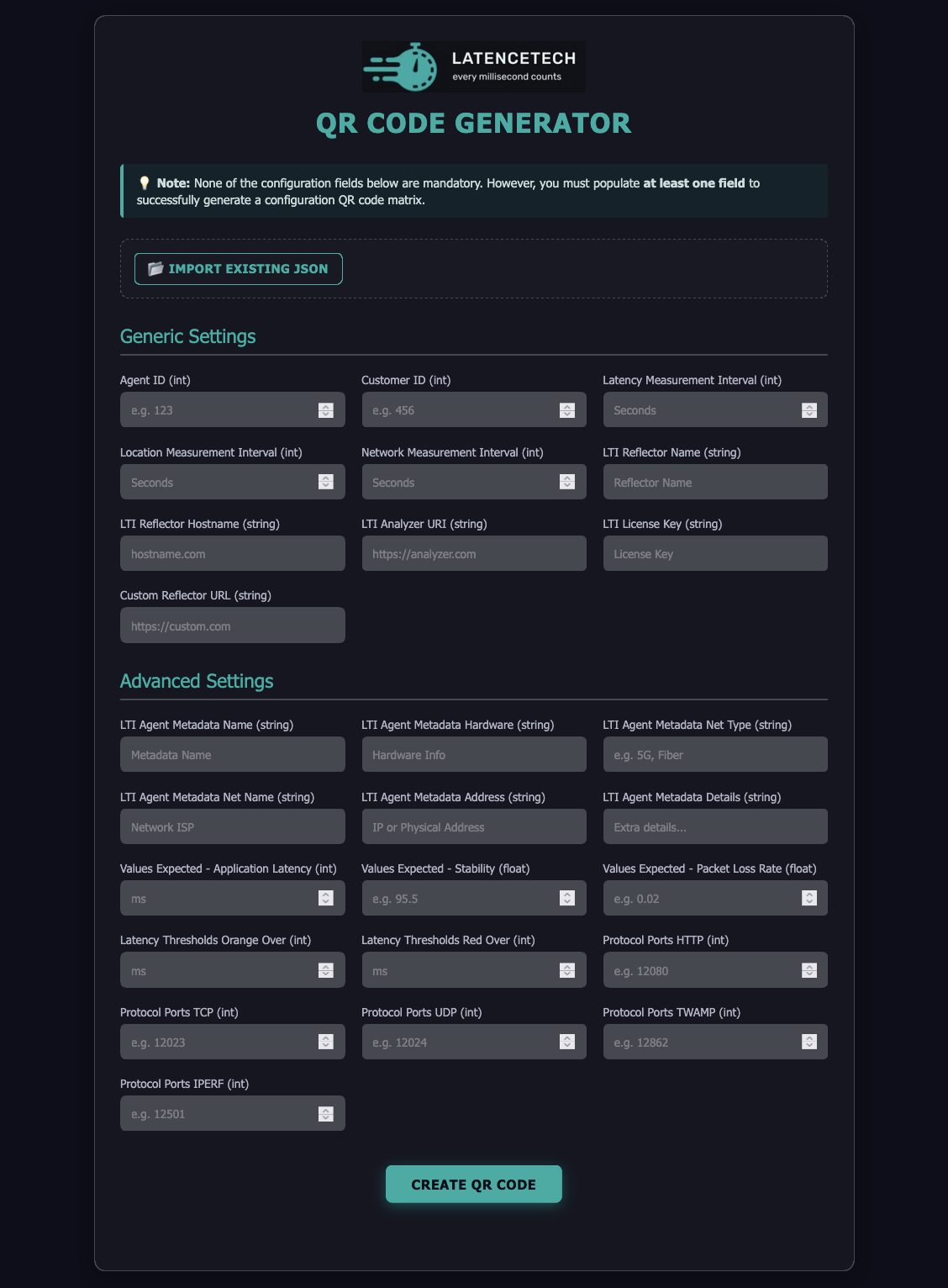
Table of Contents
- How to Use the Generator
- Importing an Existing Configuration
- Understanding the Validation Rules
- Troubleshooting QR Scanning Issues
How to Use the Generator
Creating a configuration QR code takes just a few steps:
- Fill out the fields: Enter your data into the relevant form fields.
- Note: None of the fields are mandatory, but you must fill out at least one field to create a QR code.
- Review your data: Double-check your numbers and names to ensure accuracy.
- Generate: Click the primary "Create QR Code" button at the bottom of the page.
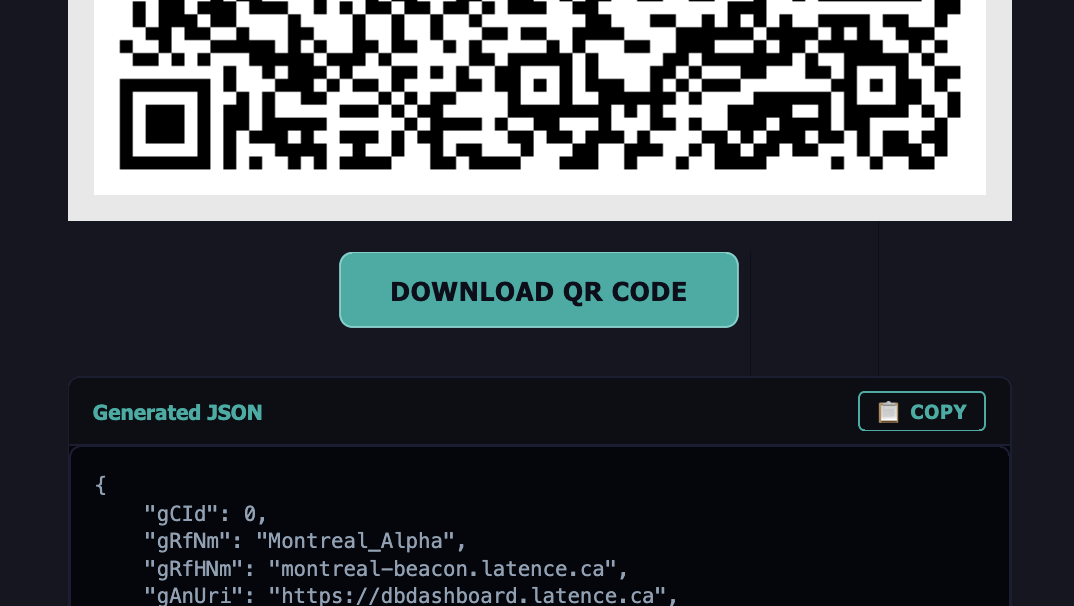
- Download or Copy: * Click "Download QR Code" to save the QR code as a
.pngimage. - If you need to copy the clean text configuration for your records, go to the "Generated JSON" section at the bottom and click "📋 COPY".
Importing an Existing Configuration
If you already have a configuration text string and want to modify it or view it in the form:
- Click the "📂 Import Existing JSON" button at the top of the form to slide open the import panel.

- Paste your configuration text string directly into the text box.
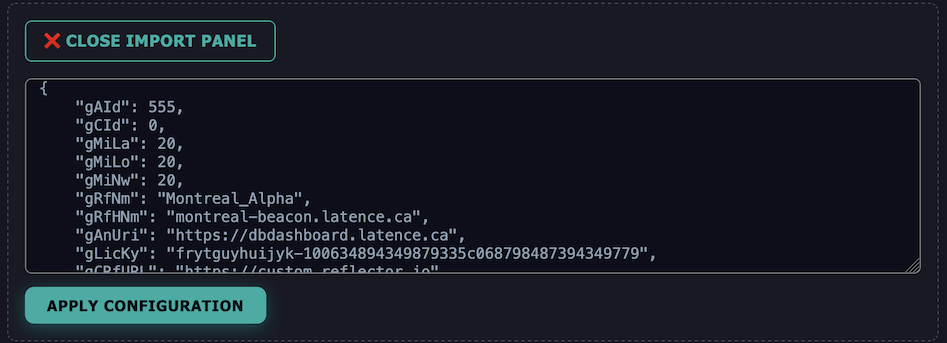
- Click "Apply Configuration".
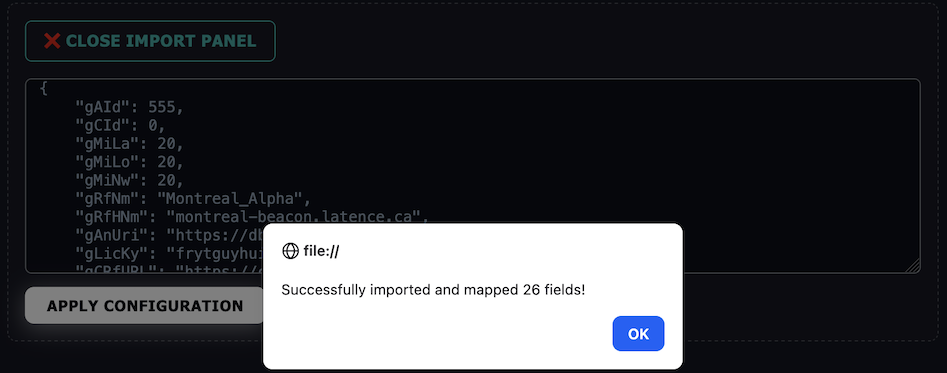
- The panel will close, and the form fields will automatically fill with your data, ready for you to edit.
Understanding the Validation Rules
To prevent setup errors on your destination devices, the generator enforces a few smart safety rules:
1. No Negative Numbers
Fields labeled as integers (like IDs, Intervals, or Ports) cannot accept negative numbers (e.g., -15). If you accidentally type a minus sign, the form will halt and ask you to fix it before it will generate a QR code.
2. High Density Warning
QR codes work like a grid grid matrix: the more data you type into the form, the more dense and complex the QR code pattern becomes.
If your total configuration exceeds 366 characters, an amber warning banner will appear:

If you see this warning, the QR code is still perfectly valid, but it means the pixels are getting very small. Read the troubleshooting section below if you experience issues scanning it.
Troubleshooting QR Scanning Issues
If your device or phone camera is struggling to scan the generated QR code, try the following steps:
- Clean up Optional Metadata: Advanced metadata fields (like Hardware info, Network Names, or long detail strings) add a lot of text characters. Try clearing out non-essential text fields to make the QR code pattern larger and easier to scan.
- Adjust Contrast and Lighting: Ensure there are no glares or reflections on the screen displaying the QR code.
- Increase Screen Brightness: Turn up the brightness of the screen showing the QR code so the camera can clearly differentiate between the dark and light pixels.
- Using Multiple QR Codes: If your configuration data is critical and cannot be trimmed further, high data density might cause scanning issues. In this case, you can split the data across multiple QR codes. Simply divide the configuration into smaller portions and generate a QR code for each part.
Note: If the same configuration field exists across multiple QR codes, the mobile app will overwrite the previous data with the values from the most recently scanned QR code.