QoSAgent for Windows
QoSAgent for Windows continuously measures the quality of the connection between a PC and the network: latency, stability, packet loss and WiFi link quality. It is designed first for gamers, for whom a low and stable latency matters more than raw throughput, and also for companies and outdoor sites (cellular, satellite) thanks to usage profiles. Results are shown right in the icon next to the clock, so there is no dashboard to open.
Beta release
QoSAgent for Windows is a prototype (version 0.1.27) provided as a Beta release for evaluation. Use is subject to the LatenceTech End User License Agreement (EULA).Language
The interface is available in English, French, Spanish, German and Japanese: it follows the Windows language, or the choice made in Settings > General. This guide uses the English labels.
How it works
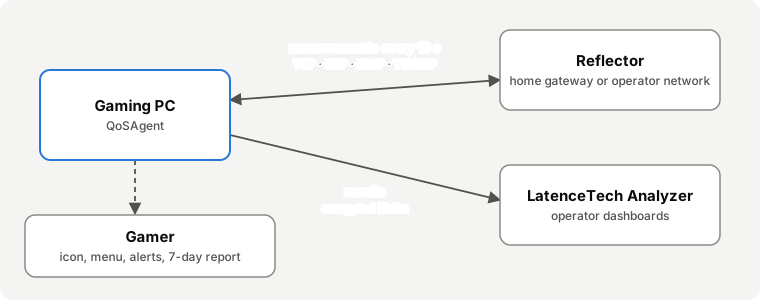
- The reflector is a small LatenceTech service installed on the home gateway (Internet box) or in the operator's network. It echoes the PC's test packets.
- QoSAgent sends these test packets at regular intervals and measures the response time, its variation and the losses. It also reads the WiFi or Ethernet link status.
- On the PC, the icon shows the latency in colour, the menu gives a plain-language verdict, notifications warn when the connection degrades, and a 7-day report can be created at any time.
- At the operator, results are sent to the LatenceTech Analyzer, which feeds the support and operations dashboards.
With a reflector on the home gateway, QoSAgent measures the PC → WiFi/LAN → gateway segment: the best way to tell whether a problem comes from the home WiFi. With a reflector in the operator's network, it also measures the Internet access.
Contents
| Page | For | Topics |
|---|---|---|
| Installation | Gamer, household | Install, update, uninstall |
| Usage profiles | Everyone | Household, Enterprise, Outdoor: what changes and how to choose |
| Everyday use | Gamer | Icon, menu, game and pause modes, alerts |
| Understanding the measurements | Gamer, support | Latency, jitter, loss, reliability, WiFi: what the numbers mean for gaming |
| "My connection" report | Gamer, support | The 7-day report to send to support |
| Configuration | Advanced user | The six tabs of the Settings window |
| Data and privacy | Everyone | What is measured, what is sent, what stays on the PC |
| Troubleshooting and FAQ | Everyone | Common problems and questions |
Requirements
- Windows 10 or Windows 11, 64-bit.
- Administrator rights to install (not to use).
- A LatenceTech reflector reachable from the PC and the Analyzer address, provided by the operator (already included in a preconfigured installer).
- Less than 100 MB of disk space and negligible network load: a few small packets every 10 seconds.
Installation
Install
- Run the setup file received from your operator, for example
QoSAgent-Setup-0.1.27.exeorQoSAgent-Setup-0.1.27-<operator>.exe. Windows asks for administrator rights. - If Windows shows "Windows protected your PC", click More info then Run anyway. Setup files are signed: the screen shows the publisher Latence Technologies Inc. (Montreal, Quebec). The warning comes from Microsoft Defender SmartScreen, which does not know this version yet: it will go away once QoSAgent's reputation is established. A setup deployed by Intune or SCCM is usually not affected.
- Choose the setup language, then accept the license agreement.
- What follows depends on the installer:
- Preconfigured installer (the file name ends with the operator or pilot name): nothing to enter, click Next until the end.
- Generic installer: a Measurement settings page asks for the home gateway reflector address (and optionally a network reflector), the Analyzer address, the agent ID and the agent name (the PC name by default). Use the values provided by your operator; for the agent ID,
autoassigns a number automatically.
- An Intended use page offers three profiles: Household (Work or eGaming) (preselected), Enterprise or Outdoor (cellular and satellite links). The profile adapts the wording and a few default settings; it can be changed at any time (see Usage profiles). This page is not shown when the preconfigured installer already sets the profile.
- A Network quality map page asks whether you agree to share the approximate position of this PC (rounded to about 1 km) for your operator's map. No is selected by default; you can change your mind at any time in the Settings (see Data and privacy).
- When setup ends, the QoSAgent icon appears next to the clock. If you don't see it, click the ^ arrow on the taskbar.
QoSAgent then starts automatically each time you sign in to Windows.
Keep the icon visible
Drag the icon from the hidden area (^ arrow) to the taskbar to see your latency at all times. On Windows 11: Settings > Personalization > Taskbar > Other system tray icons, turn on QoSAgent.
Check that it works
After one or two minutes:
- the icon shows a number (your latency in milliseconds) on a green, orange or red background;
- right-clicking the icon shows a verdict, for example "✔ Good connection for gaming";
- Menu > About… shows the version and the agent ID, to give to support if needed.
If the icon stays grey or shows a red dot, see Troubleshooting.
Update
Run the new installer: it replaces the program and keeps your configuration (qosagent.ini) and history.
Uninstall
Windows Settings > Apps > Installed apps > QoSAgent for Windows > Uninstall.
Configuration and history are kept in C:\ProgramData\LatenceTech\QoSAgent\ in case you reinstall. Delete this folder to remove everything.
Where the files are
| Location | Content |
|---|---|
C:\Program Files\LatenceTech\QoSAgent\ |
Program (QoSAgent.exe, QoSAgentTray.exe), license |
C:\ProgramData\LatenceTech\QoSAgent\qosagent.ini |
Configuration |
C:\ProgramData\LatenceTech\QoSAgent\logs\ |
Logs |
C:\ProgramData\LatenceTech\QoSAgent\history\ |
Per-minute history (30 days) for the report |
Usage profiles
QoSAgent adapts to how the PC is used. The profile is chosen during installation and can be changed at any time. All functions remain available in the three profiles: only the wording and a few default settings change.
| Profile | For whom | Wording |
|---|---|---|
| Household (Work or eGaming) – default | Gamers and remote workers at home | Gaming, video calls, home router (box), Internet provider |
| Enterprise | Offices, plants and industrial sites; network managed by an IT department | Applications, gateway, WiFi access point, IT department |
| Outdoor | Cellular (4G / 5G) and satellite (LEO, GEO) links; outdoor or mobile sites | Applications, link, 4G / 5G router or satellite terminal, site manager, operator |
What changes
| Household | Enterprise | Outdoor | |
|---|---|---|---|
| Dashboard title | "My dashboard" | "My dashboard · Enterprise" | "My dashboard · Outdoor" |
| Uses shown on the dashboard | Browsing, streaming, video calls, online gaming | Browsing and business applications, streaming, video calls, real time | Same as Enterprise |
| Menu verdict | "Good connection for gaming" | "Good connection for applications" | "Good link for applications" |
| Advice (WiFi, latency under load) | Box settings, Internet provider | To report to the IT department | Router settings, site manager, operator |
| Game mode and automatic game detection | Yes | No (the menu offers Normal mode and Pause) | No |
| Expected latency (icon colours, verdict, alerts) | 30 ms | 50 ms | 80 ms |
| Data cap of the latency under load test | 2 GB / 1 GB | 500 MB / 250 MB | 500 MB / 250 MB |
Menu and dashboard in the Enterprise profile: verdict "for applications", no game mode.
These defaults apply as long as you have not changed them. A value you chose (for example an expected latency of 40 ms) is kept when you change profile.
Choosing the profile
- During installation: the Intended use page offers the three profiles, with Household (Work or eGaming) preselected. It is not shown during an update (the profile is kept) nor with a preconfigured installer that already sets the profile.
- Afterwards: menu Settings… > General tab > Intended use, then Save and restart. The wording changes at once.
- Company deployment:
/PROFILE=enterprise(oroutdoor) parameter of the silent installation, orLTI_usage_profilekey of the preset.
A PC installed before profiles existed (version 0.1.17 or earlier) is in the Household profile: nothing changes for it.
What is sent to the Analyzer
The profile is added at the head of the "Details" field of the agent metadata, for example profile=enterprise; Workshop B. The text typed in Settings > Agent > Details or notes is not changed on the PC.
Everyday use
QoSAgent needs no attention: it measures in the background and warns you when the connection degrades. Everything happens in the icon and its menu (right-click).
The icon
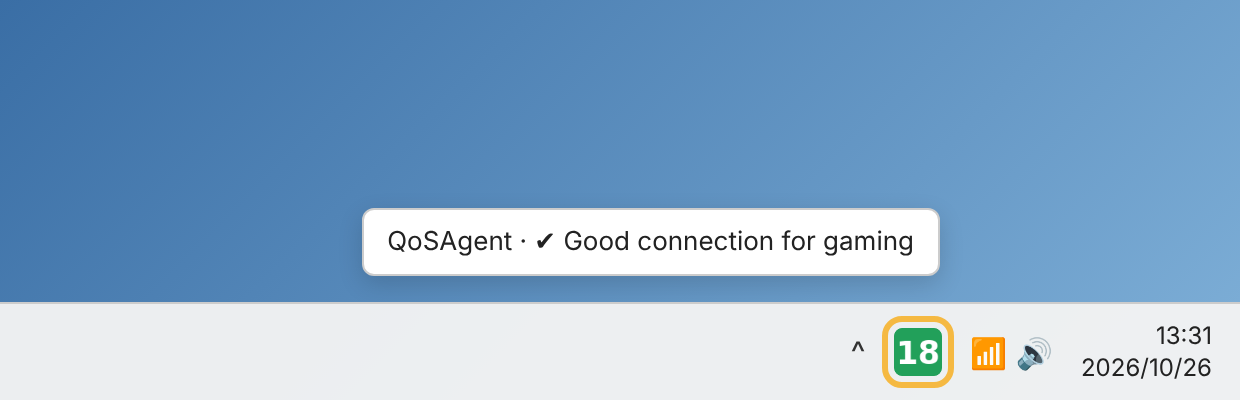
The icon is at the bottom right of the screen, next to the clock. If you don't see it, click the ^ arrow: it is among the hidden icons; drag it onto the taskbar to keep it visible.
The icon shows your current latency in milliseconds (median of the last minute, the same number as on the dashboard), updated at each measurement (every 10 seconds by default). Its colour compares it with the expected latency (30 ms by default, set in Configuration > Agent):
| Icon | Meaning |
|---|---|
 Green Green |
Good for gaming: latency at or below the expected latency |
 Orange Orange |
Fair: up to twice the expected latency |
 Red Red |
High: more than twice the expected latency; "!" above one second |
 Red "--" Red "--" |
The reflector has not answered for a minute (menu: "✖ Reflector unreachable"): check the Internet connection |
 Grey "II" Grey "II" |
Paused: no measurement |
| Stopwatch with a red dot | Agent stopped: use Restart the agent |
Hover over the icon to read the verdict, the last latency and the current mode. To show the LatenceTech logo instead, untick Show latency in the icon.
The menu
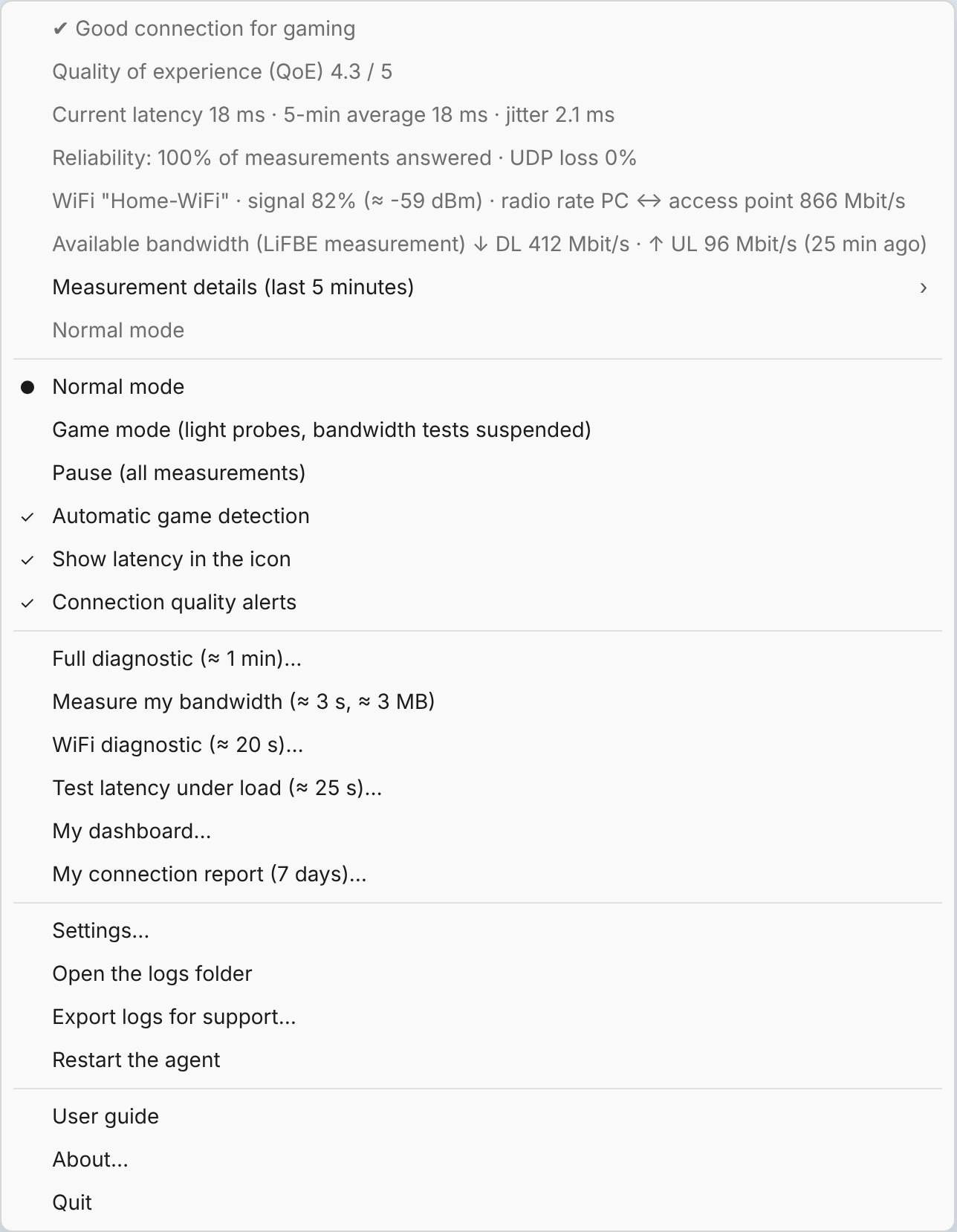
Illustration: the exact look depends on the Windows version.
Live connection status
The first lines summarise the last 5 minutes:
- the verdict: "✔ Good connection for gaming", "▲ Fair connection – …" (with the reason: slightly high latency, unstable latency, some loss), "✖ Connection degraded for gaming (…)" or "✖ Reflector unreachable";
- Quality of experience (QoE): a 1–5 score combining latency, loss and available bandwidth against their targets (same calculation as the LatenceTech dashboards); above 3.2 the connection is good;
- Current latency: median of the last minute (the same number as in the icon and on the dashboard), 5-minute average and jitter (variation from one measurement to the next);
- Reliability: share of measurements that got an answer, and UDP packet loss;
- the link: WiFi name, signal strength (in % and in dBm, approximate) and radio rate between the PC and the WiFi access point (not the Internet speed), "Mobile network" with the operator and signal, or "Ethernet cable";
- Available bandwidth (LiFBE measurement): downlink (↓ DL) and uplink (↑ UL) of the last measurement and when it happened, e.g. "Available bandwidth (LiFBE measurement) ↓ DL 108 Mbit/s · ↑ UL 40 Mbit/s (12 min ago)". See Measuring my bandwidth;
- Measurement details (last 5 minutes): a submenu with each probe (ICMP, TCP, UDP): last value, average, minimum, maximum, jitter and answer rate.
What these numbers mean for gaming is explained in Understanding the measurements.
Modes
| Mode | Effect | When to use it |
|---|---|---|
| Normal mode | All measurements at the configured intervals | Default |
| Game mode | Latency measurements spaced out (10 s), TWAMP every 60 s, loss and throughput tests suspended | While playing: QoSAgent becomes nearly invisible on the network |
| Pause | No measurement at all | During a big download, an external speed test, etc. |
Automatic game detection (automatic game detection, on by default): QoSAgent switches to game mode on its own when a known game starts (Counter-Strike 2, Valorant, Fortnite, League of Legends, Apex Legends, Call of Duty, Rocket League, Overwatch, Dota 2, GTA V, EA FC, Rainbow Six, PUBG, Minecraft, Destiny 2, Marvel Rivals…) and back to normal when the game ends. More games can be added in Settings > Measurements. Game names are never sent.
A mode chosen by hand (for example Pause) takes priority over automatic detection.
Enterprise and Outdoor profiles
Game mode and automatic game detection are offered only with the Household (Work or eGaming) profile. In Enterprise and Outdoor, the menu offers Normal mode and Pause; see Usage profiles.
Other menu entries
| Entry | Purpose |
|---|---|
| Show latency in the icon | Coloured number (ticked) or LatenceTech logo |
| Connection quality alerts | Turns all notifications on or off |
| Measure my bandwidth (≈ 3 s, ≈ 3 MB) | Runs a bandwidth measurement now |
| My connection report (7 days)… | Creates the report on the Desktop and opens it |
| Settings… | Opens the Configuration window |
| Open the logs folder | Opens the folder with the qosagent.log file |
| Export logs for support… | Creates a QoSAgent-support-….zip file on the Desktop to send to support |
| Restart the agent | Restarts the measurements |
| User guide | Opens this guide, installed with QoSAgent: it works without an Internet connection (French, or English for the other languages) |
| About… | Version, agent ID, license and contacts |
| Quit | Stops the icon and measurements until the next sign-in |
Full diagnostic
For an on-site check or a reported problem, the Full diagnostic (≈ 1 min)… menu entry (or the button of the same name at the top of My dashboard) runs in a row:
- in the Enterprise and Outdoor profiles, the check location ("Workshop B, dock 3");
- a bandwidth measurement (LiFBE);
- the WiFi diagnostic, when the PC is on WiFi;
- the latency under load test (the connection is loaded for about 25 seconds);
- one report on the Desktop,
QoSAgent-full-diagnostic-….html: verdict, QoE, round-trip latency, loss, bandwidth, link, what the connection allows, results of the WiFi diagnostic and of the latency under load test, with links to their detailed reports. Attach it to the ticket (Ctrl+P for a PDF).
The check location can also be changed with the Check location… menu entry (Enterprise and Outdoor profiles) or in Settings > Agent. It is sent to the Analyzer with the measurements, so that each check can be found there.
Mobile network: on a PC or tablet with a 4G / 5G modem, the menu and the dashboard show "Mobile network", the operator and the signal; the WiFi diagnostic is then not applicable.
Measuring my bandwidth
QoSAgent estimates the available bandwidth of the connection, downlink (↓, what you receive) and uplink (↑, what you send), with a light measurement: a few seconds and about 3 MB, against more than 100 MB for a classic speed test.
- Automatically, once an hour (set in Settings > Measurements), except in game mode and pause.
- On demand: menu Measure my bandwidth. The line "Bandwidth measurement in progress…" appears, then a notification gives the result, e.g. "Available bandwidth (LiFBE measurement): ↓ DL 108 Mbit/s · ↑ UL 40 Mbit/s". The entry is greyed out in game mode and pause.
- "≥ 149 Mbit/s" means the quick measurement did not reach the limit of the connection: the real value is higher.
- On WiFi the value is indicative: WiFi groups packets together, which makes the measurement less precise than on Ethernet. First trials show a gap of a few percent up to about fifteen percent with a classic speed test.
- The available bandwidth is also in the report.
My dashboard
The My dashboard… menu entry opens a page in your browser that sums up your connection at a glance, refreshed every 2 seconds:
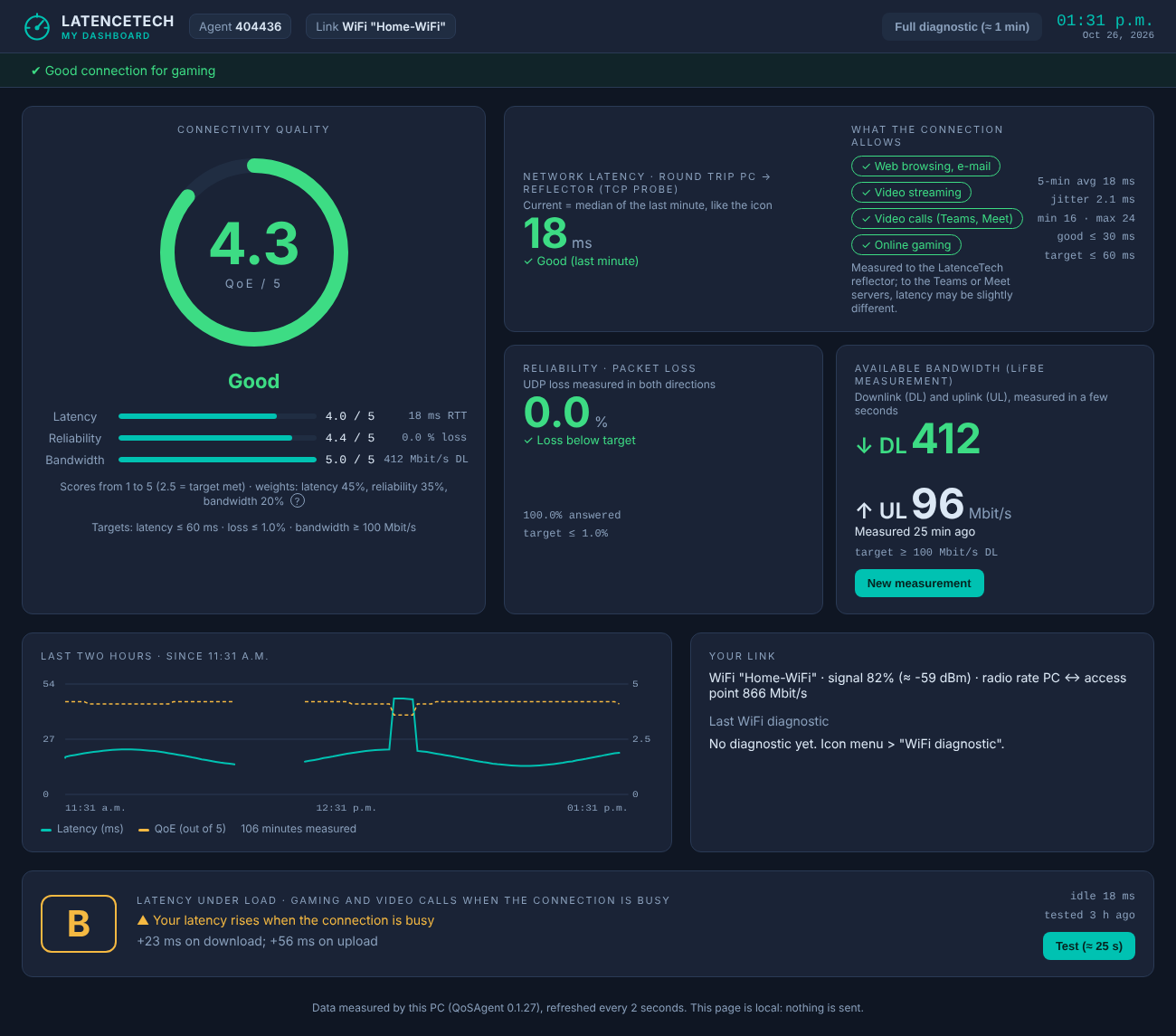
- the quality of experience (QoE) out of 5, with its status (Good, Fair or Degraded), the latency / reliability / bandwidth breakdown and the targets used (2.5 = target met);
- network latency (round trip PC → reflector, TCP probe): the big number is the current latency, median of the last minute, the same as in the icon and with the same colours (green up to the expected latency, orange up to twice that, red above); the 5-minute average is on the right;
- loss and available bandwidth (LiFBE measurement, ↓ DL and ↑ UL) against their targets, with the age of the measurement (orange after one hour) and a New measurement button;
- what the connection allows: a ✓ (good), ▲ (borderline) or ✖ (insufficient) for each use — web browsing and e-mail, video streaming, video calls (Teams, Meet), online gaming (Household profile) or real time (Enterprise and Outdoor profiles). Hovering over a use shows its target; for video calls, these are Microsoft's targets for Teams (latency ≤ 100 ms, jitter ≤ 30 ms, loss ≤ 1%). The measurement is made to the LatenceTech reflector, not to the Teams or Meet servers;
- the last two hours (latency and QoE) on a real time axis: the title gives the start time, and a period without measurements (PC asleep, agent stopped) leaves a gap;
- your link (WiFi or cable) and the result of the last WiFi diagnostic;
- the last latency under load test (grade from A+ to F, latency rise on download and on upload, first advice), with a Test (≈ 25 s) button. The page shows when a test is running; the detailed report is also saved on the Desktop.
The page is served by QoSAgent on your PC only (address 127.0.0.1): it cannot be reached from the network and nothing is sent. It works as long as the QoSAgent icon is open.
WiFi diagnostic
The WiFi diagnostic (≈ 20 s)… menu entry checks how this PC sees your WiFi and says what to do to improve it. A "Diagnostic WiFi en cours" notification appears, then a report opens in the browser (file QoSAgent-diagnostic-wifi-….html on the Desktop) and a notification sums up the verdict.
| Criterion | What is checked |
|---|---|
| Signal | Strength of the signal received by the PC |
| Band | 2.4, 5 or 6 GHz; flags when your box also emits in a faster band |
| Channel congestion | Neighbour networks on your channel (or an overlapping one); suggests less crowded channels |
| Link rate | Speed of the WiFi link between the PC and the box |
| WiFi standard | Wi-Fi 4, 5, 6 or 7 of the connection, compared with what the PC card and the box support |
| Stability to the box | 80 pings to the box in 20 s: loss, jitter, micro-cuts |
Each criterion gets ✔ (good), ▲ (can be improved) or ✖ (limits your connection), and the two most useful advices come first in the report.
- The entry is greyed out when the PC is on a cable, in game mode and in pause.
- Nothing is sent: the report stays on your PC (it is included in the support export if you create one). Neighbour networks are counted, never named.
- On Windows 11, location must be turned on.
Latency under load
The Test latency under load (≈ 25 s)… menu entry shows what happens to your games and video calls when the connection is busy (download, cloud backup, streaming). It is the most common cause of "lag" at home ("bufferbloat").
- 5 s idle, then 8 s of download and 8 s of upload to a public speed-test server.
- During the whole test, the latency is measured to the box and to the Internet.
-
A report opens (file
QoSAgent-latence-sous-charge-….htmlon the Desktop) with a grade from A+ to F based on the latency increase: A+ ≤ 5 ms, A ≤ 30 ms, B ≤ 60 ms, C ≤ 200 ms, D ≤ 400 ms, F above. -
If the latency to the box rises too, the queue is in the WiFi; otherwise it is on the Internet access (box or operator), and the report suggests the useful settings.
- QoSAgent's own measures are paused during the test, then resume.
- The test uses up to 2 GB of download and 1 GB of upload on a very fast (fibre) connection, much less on a slower one: avoid it on a capped plan (4G / 5G box).
- Test server: Cloudflare by default; another server can be set with
LTI_load_download_urlandLTI_load_upload_url. No personal data is sent and the report stays on your PC. - The entry is greyed out in game mode, in pause and during a bandwidth measurement.
Alerts
QoSAgent shows a Windows notification when the connection degrades:
| Alert | Default trigger |
|---|---|
| High latency | Above twice the expected latency (60 ms), 3 measurements in a row |
| Packet loss | Above 5 %, twice in a row |
| Reflector unreachable | No probe answers, 3 times in a row |
- The alert clears by itself when things return to normal (3 measurements below 80 % of the threshold), without flapping at each measurement.
- At most one notification of each type every 15 minutes.
- While playing, no notification interrupts you: a summary appears when the game ends, for example "During your game (35 min): connection degraded 2 times, max latency 180 ms" (during your game: connection degraded twice, max latency 180 ms).
- Alert types, thresholds and silence during games are set in Settings > Alerts.
WiFi and Windows location
On recent versions of Windows 11, Windows only gives WiFi details (network name, signal, channel) to apps allowed to use location. When it is off, QoSAgent still measures latency but without WiFi details, and the menu shows "⚠ Turn on location for WiFi measurements…":
- Click this entry: the Settings > Privacy & security > Location page opens.
- Turn on Location services and Let desktop apps access your location.
- The warning disappears from the menu within a minute.
For WiFi measurements, QoSAgent only reads the link information. It uses your position only if you agreed to share the approximate position (about 1 km) for the network quality map, at installation or in Settings > General (see Data and privacy).
Understanding the measurements
This page explains what QoSAgent measures and what the numbers mean for a gamer. Thresholds are relative to the expected latency, 30 ms by default (set in Configuration > Agent).
Indicators
Latency
The round-trip time between the PC and the reflector, in milliseconds (ms). It is the "ping" of online games: the lower it is, the faster the game reacts to your actions.
QoSAgent measures latency in several ways, every 10 seconds by default:
| Probe | How | Why |
|---|---|---|
| TCP | Connection and exchange on the reflector's TCP port | Close to the traffic of many games and services; this is the value shown in the icon (median of the last minute) |
| UDP | UDP packet echoed by the reflector | Close to the real-time traffic of action games |
| ICMP | Classic "ping" | Universal reference; sometimes given low priority by network equipment |
| TWAMP | Standard protocol (RFC 5357): bursts of timestamped packets | Fine-grained latency, jitter and loss in each direction |
Jitter
The variation of latency from one measurement to the next (mean difference between consecutive measurements, RFC 3550 method). A steady 25 ms is much better for gaming than a latency swinging between 10 and 80 ms: jitter is what causes lag spikes, stutter and "teleporting" players.
Packet loss
The share of UDP packets that never arrive, measured in both directions with bursts of packets. Even 1–2 % loss is noticeable in games (missed actions, desynchronisation).
Reliability (successful measurements)
The share of latency measurements that got an answer. Below 95 %, the connection has drop-outs or significant loss.
WiFi or Ethernet link
| Value | Meaning |
|---|---|
| WiFi name (SSID) | The network the PC is connected to |
| Signal (%, ≈ dBm) | Signal quality received by the PC (in dBm: value given by the modem on a mobile network, approximate on WiFi). Above 70 %: good; below 50 %: the PC is too far from the gateway or blocked by obstacles |
| Radio rate PC ↔ access point (Mbit/s) | Speed negotiated between the PC and the gateway or access point. Not the Internet speed, but an indicator of WiFi quality |
| Band, channel | 2.4 GHz (range) or 5 / 6 GHz (speed, less interference); visible in the operator's dashboards |
Available bandwidth (LiFBE measurement)
The available bandwidth in each direction, in Mbit/s, measured with LiFBE (Low Intrusive Fast Bandwidth Estimation, a patented method): the PC and the reflector exchange short trains of UDP packets sent faster and faster; the moment packets start to queue gives the available bandwidth. One measurement takes a few seconds and about 3 MB, instead of more than 100 MB for a classic speed test.
- It is the bandwidth still available at the time of the measurement: if someone streams 4K video at home, it is lower.
- "≥ X Mbit/s": the measurement did not reach the limit of the connection; the real bandwidth is higher.
- On WiFi the value is indicative (WiFi groups packets); it is more precise on Ethernet.
PC statistics
Every 2 minutes, processor and memory usage. An overloaded PC can itself cause stutter: this helps support tell the difference.
The quality of experience (QoE) score
The menu and My dashboard show a score from 1 to 5 (QoE). It combines three scores, also from 1 to 5, each computed from one measurement:
| Score | Measurement used | Unit | Default target |
|---|---|---|---|
| Latency (45% of the score) | Round-trip latency PC → reflector, TCP probe, 5-minute average | ms | ≤ 2 × the expected latency (60 ms in Household, 100 ms in Enterprise) |
| Reliability (35%) | UDP packet loss, measured in both directions | % | ≤ 1% |
| Bandwidth (20%) | Latest available downlink bandwidth measured by LiFBE | Mbit/s | ≥ 100 Mbit/s |
A measurement exactly at its target scores 2.5 / 5; better, the score rises (a perfect measurement scores about 4.4); worse, it drops down to 1. On the dashboard, the actual measurement is shown to the right of each score (for example 1.0 / 5 · 112 ms RTT), and the target in the matching card.
The latency in this score is a network latency, not the loading time of a web page. The ICMP and UDP probes, and TWAMP for jitter and standard loss, are sent to the Analyzer; they are not part of the score.
The verdict
The menu verdict and the report apply the same rule to the TCP probe (or UDP, or ICMP if TCP is disabled):
| Verdict | Conditions (expected latency 30 ms) |
|---|---|
| ✔ Good for gaming | Latency ≤ 30 ms, jitter ≤ 15 ms, loss ≤ 1 %, at least 95 % answers |
| ▲ Fair | Latency between 30 and 60 ms, or jitter between 15 and 30 ms, or some loss (above 1 %, or fewer than 95 % answers) |
| ✖ Degraded for gaming | Latency > 60 ms, or jitter > 30 ms, or loss > 5 % |
| ✖ Reflector unreachable | Fewer than half of the measurements get an answer |
As a rule: "fair" threshold = expected latency; "degraded" threshold = twice the expected latency; jitter is "unstable" above half the expected latency (5 ms minimum).
Gaming guidelines
| Latency | Typical experience |
|---|---|
| < 20 ms | Excellent, ideal for competitive games (shooters, fighting games) |
| 20 – 50 ms | Good for all games |
| 50 – 100 ms | Playable, but a disadvantage in competition |
| > 100 ms | Visible delays, action games become hard |
These guidelines also depend on the distance to the game server: QoSAgent measures the part of the connection between the PC and the reflector, which is the part the household and the operator can act on.
Where is the problem?
| Observation | Likely cause | What to try |
|---|---|---|
| High or unstable latency with a reflector on the gateway, weak WiFi signal | Home WiFi | Move the PC closer to the gateway, use 5 GHz, an Ethernet cable or a repeater |
| Degradation mostly in the evening (see the report) | Busy home network (streaming, downloads) or busy operator network | Compare with a reflector in the operator's network; contact support with the report |
| Good latency to the gateway, degraded to the network | Internet access or operator network | Contact the operator's support with the report |
| Stutter in game but "good" connection in QoSAgent | Overloaded PC or game server | Check PC statistics; try another server |
"My connection" report
The report summarises your connection quality over the last 7 days. It is handy when calling your operator's support with facts rather than an impression ("it lags in the evening").
Create the report
- Right-click the QoSAgent icon > My connection report (7 days)…
- The report opens in your browser. Two files are created on the Desktop:
QoSAgent-report-YYYYMMDD-HHMM.html: the report itself, in the interface language;QoSAgent-report-YYYYMMDD-HHMM.csv: minute-by-minute details, which open in Excel.
- For a PDF: in the browser, Ctrl+P then Save as PDF.
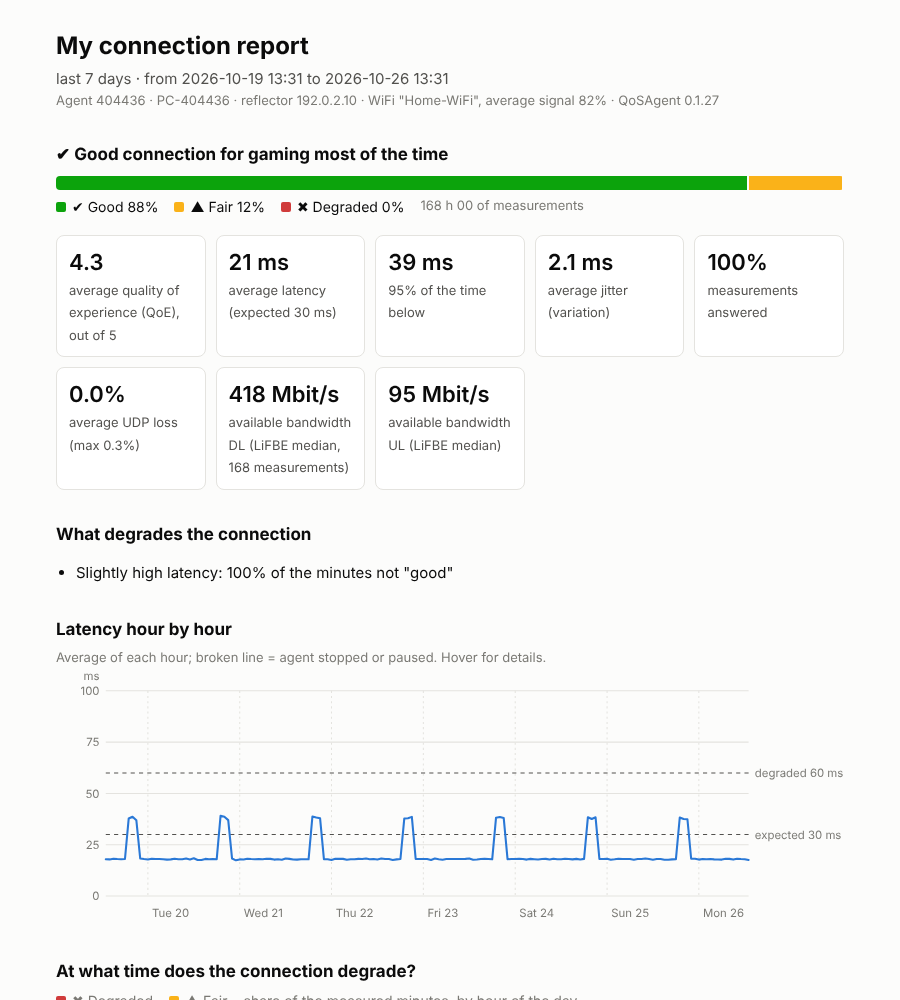
Example report with one week of simulated data.
What the report contains
| Section | What it shows |
|---|---|
| Header | Period, agent ID, PC name, reflector, WiFi used and average signal, QoSAgent version |
| Verdict and breakdown | Share of time the connection was good, fair or degraded for gaming (rules in Understanding the measurements), time measured and time paused |
| Key indicators | Average latency, latency not exceeded 95 % of the time, average jitter, measurements answered, average and maximum UDP loss; available downlink and uplink bandwidth (median of the period), once a bandwidth measurement has run |
| What degrades the connection | Most frequent causes: high latency, unstable latency, loss, reflector unreachable |
| Hourly latency | The 7-day curve with the "expected" and "degraded" thresholds. A gap means the PC was off or paused. Hover for details |
| At what time does the connection degrade? | For each hour of the day, the share of degraded or fair time: reveals evening problems, for example |
| Hardest moments | The 5 hours when the connection was most often degraded |
| Day by day | A daily summary, with the day's median available bandwidth ("≥": limit of the connection not reached, real bandwidth higher) |
Good to know
- The report uses the history kept on the PC (one line per minute, 30 days). It starts filling at installation: after a few hours the report is already meaningful. Hours when the PC was off do not appear.
- The report is created on your PC; nothing is sent without your consent. You decide whether to send it to support (by e-mail, for example).
- The
.csvfile follows the interface language so that it opens directly in Excel: comma and decimal point in English and Japanese, semicolon and decimal comma in French, Spanish and German. - The support export (Menu > Export logs for support…) also includes the last days of history.
Configuration
Right-click the icon > Settings… opens a window with six tabs. It opens on the General tab (language, intended use, privacy); support settings are under Advanced. Save and restart checks the values, saves them in qosagent.ini and restarts the measurements within seconds; an invalid value is rejected with a message naming the tab and field.
Note
With a preconfigured installer everything is already set: this window is mostly for testing and support. The screenshots below are previews; the look varies with the Windows version.
General
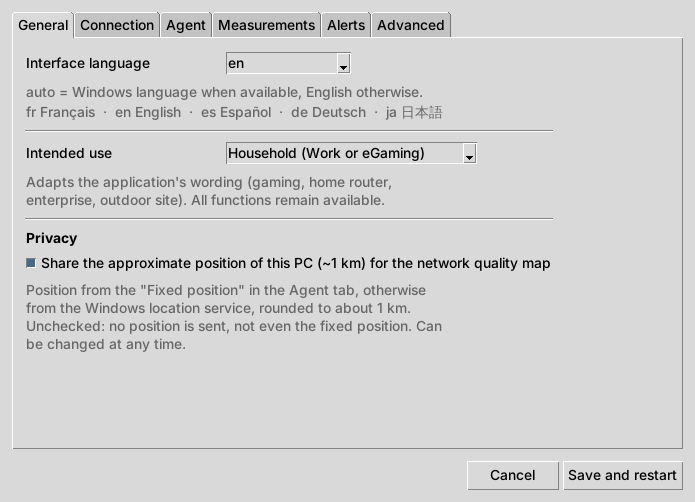
Interface language: auto (default) follows the Windows language when available (French, English, Spanish, German, Japanese), English otherwise. You can also choose fr, en, es, de or ja. The change applies as soon as you save: menu, notifications, reports and dashboard (key LTI_language in the configuration file).
Intended use: Household (Work or eGaming), Enterprise or Outdoor profile. It adapts the application's wording and a few default settings (expected latency, latency under load data cap, game mode); see Usage profiles. Key LTI_usage_profile (household, enterprise, outdoor).
Privacy – Share the approximate position of this PC (~1 km): unchecked by default (choice made at installation). Checked: the fixed position from the Agent tab, otherwise the Windows location service position, rounded to about 1 km, is sent for the network quality map. Unchecked: no position is sent.
Connection
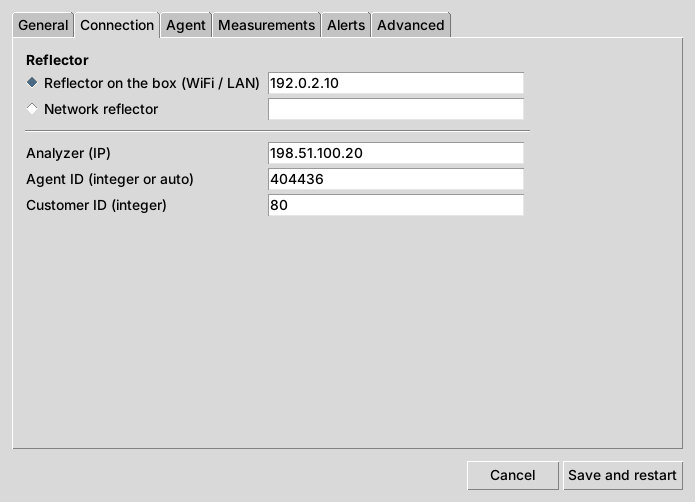
| Field | Purpose |
|---|---|
| Reflector on the box (WiFi / LAN) | IP address or name of the reflector on the home gateway |
| Network reflector | Address of the reflector in the operator's network (optional) |
| Radio button | Which reflector is measured: gateway or network (one at a time in this version) |
| Analyzer (IP) | IP address of the LatenceTech server receiving the results (default 146.183.11.71) |
| Agent ID (integer or auto) | This PC's number in the Analyzer. auto: assigned at first start from the date and time, then kept. Shown in About… |
| Customer ID (integer) | Customer or pilot number at the operator |
Agent
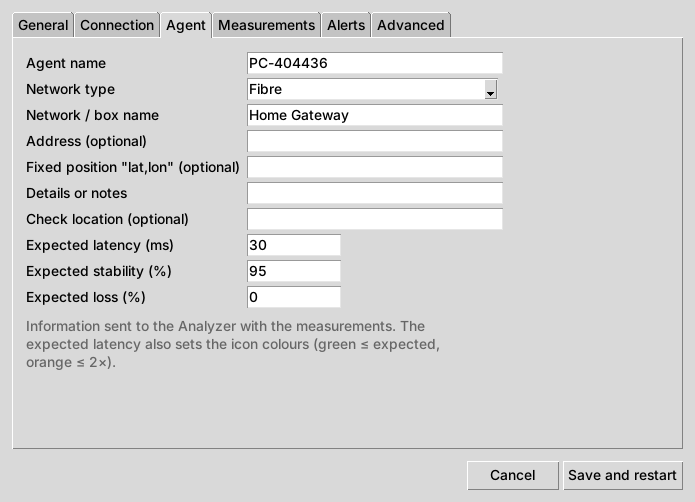
This information accompanies the measurements sent to the Analyzer and helps support interpret them.
| Field | Purpose |
|---|---|
| Agent name | Name shown in dashboards (PC-<ID> by default) |
| Network type | Fibre, VDSL / ADSL, Cable, 4G / 5G box, Satellite, Other |
| Network / box name | For example "Home Gateway" or "Living room box" |
| Address (optional) | Household address, if you agree to share it |
| Fixed position "lat,lon" (optional) | Household coordinates, for example 48.8566,2.3522. Sent only when position sharing is checked (General tab) |
| Details or notes | Free text (floor, repeater, equipment…) |
| Check location (optional) | Place of an on-site check ("Workshop B, dock 3"): shown in the reports and the dashboard, sent to the Analyzer (location= in the "details" field). Also in the menu in the Enterprise and Outdoor profiles |
| Expected latency (ms) | 30 by default (50 in Enterprise, 80 in Outdoor). Reference for icon colours, verdict, alerts and report |
| Expected stability (%) | 95 by default |
| Expected loss (%) | 0 by default |
Measurements
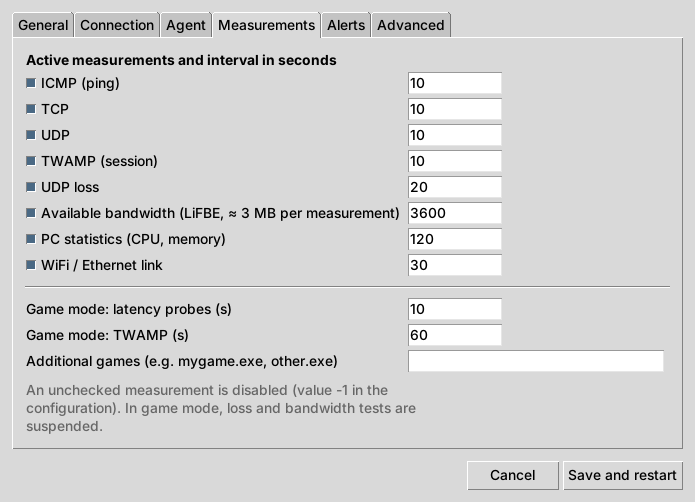
Each measurement has a checkbox and an interval in seconds (0.5 to 86,400). An unticked measurement is disabled (value -1 in the configuration file).
| Measurement | Default | Purpose |
|---|---|---|
| ICMP (ping) | 10 s | Ping latency |
| TCP | 10 s | TCP latency (icon value) |
| UDP | 10 s | UDP latency |
| TWAMP (session) | 10 s | Standard latency, jitter and loss |
| UDP loss | 20 s | Loss rate in both directions (one measurement lasts about 10 s) |
| Available bandwidth (LiFBE, ≈ 3 MB per measurement) | 3600 s | Available bandwidth, downlink and uplink; 300 s minimum. Unticked: no automatic measurement, on-demand measurement still possible |
| PC statistics (CPU, memory) | 120 s | PC load |
| WiFi / Ethernet link | 30 s | WiFi name, signal, link rate |
| Game mode: latency probes | 10 s | ICMP / TCP / UDP interval while playing |
| Game mode: TWAMP | 60 s | TWAMP interval while playing |
| Additional games (e.g. mygame.exe, other.exe) | – | Executable names separated by commas (mygame.exe, other.exe) to detect in addition to the built-in list |
The three game mode settings are shown only with the Household profile (as is No notification during games in the Alerts tab).
Demonstration
For a more reactive icon and alerts (during a demo, for example), set TCP and UDP to 2 s, then back to 10 s.
Alerts
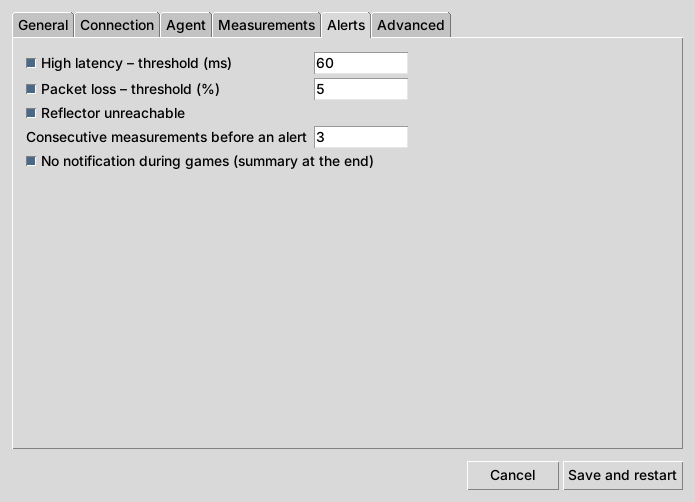
| Field | Default | Purpose |
|---|---|---|
| High latency – threshold (ms) | 60 (2 × expected latency; 100 in Enterprise, 160 in Outdoor) | Alert when latency exceeds this threshold |
| Packet loss – threshold (%) | 5 | Alert when UDP loss exceeds this threshold |
| Reflector unreachable | on | Alert when no probe answers |
| Consecutive measurements before an alert | 3 | Avoids alerts for an isolated spike (1 to 20) |
| No notification during games (summary at the end) | on | End-of-game summary instead of notifications |
If you change the expected latency without touching the latency threshold, the threshold follows automatically (2 × the new value).
Advanced
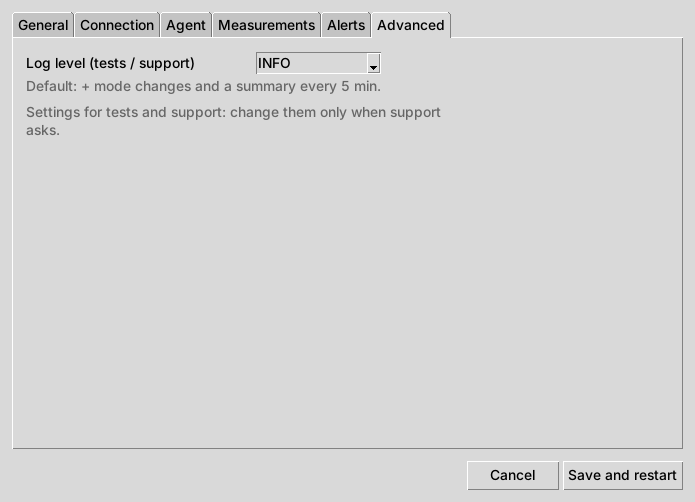
Log level (tests / support): change only when support asks. This tab only holds test and support settings.
| Level | Log content |
|---|---|
| ERROR | Errors and key events only |
| INFO | Default: also mode changes and a summary every 5 minutes |
| DEBUG | Testing: also each measurement in plain text; back to INFO after 24 h |
| TRACE | Support: also raw Kafka messages and internal logs; back to INFO after 24 h |
The configuration file
All settings are stored in C:\ProgramData\LatenceTech\QoSAgent\qosagent.ini (section [LTI]). A few settings have no field in the window:
| Key | Default | Purpose |
|---|---|---|
LTI_history |
true |
Local per-minute history for the report |
LTI_history_days |
30 |
Days of history kept |
LTI_auto_game |
true |
Initial value of automatic game detection |
LTI_log_summary_period |
300 |
Log summary every N seconds (0 = never) |
LTI_log_debug_hours |
24 |
Back to INFO after N hours in DEBUG / TRACE (0 = never) |
LTI_startup_delay |
5 |
Delay before the first measurements at start-up (s) |
Data and privacy
QoSAgent measures the connection, not what you do online: it does not read your traffic, the sites you visit or the content of your games.
What is sent to the operator's Analyzer
| Data | Examples | Frequency |
|---|---|---|
| Measurement results | TCP / UDP / ICMP / TWAMP latency, jitter, loss | At each measurement (10 s by default) |
| Available bandwidth | Downlink and uplink bandwidth, jitter and loss of the measurement, link type | At each bandwidth measurement (hourly by default, and on demand) |
| Network link | Link type, WiFi name (SSID), access point ID (BSSID), channel, signal, link rates | Every 30 s |
| PC statistics | Processor and memory usage | Every 2 min |
| Approximate position (only if you agreed) | Position rounded to about 1 km: the fixed position you entered, otherwise the Windows location service position | At start-up, then every 15 min |
| Agent description | Agent ID, Customer ID, agent name (with the generic installer, the PC name by default; PC-<ID> with a preconfigured installer), network type and name, PC manufacturer / model and Windows version, measurement intervals, expected latency; address and notes only if you entered them |
At start-up, then periodically |
| Heartbeat | The agent is running | Periodically |
What is never sent
- The names of detected games (detection only switches to game mode, on the PC).
- Your geographic position, unless you agreed to share the approximate position (at installation or in Settings > General). Sharing is off by default and can be withdrawn at any time by unchecking the box; unchecked, no position is sent, not even the fixed position. The shared position is rounded to about 1 km and is used for the operator's network quality map.
- Your Internet traffic, files or credentials.
- The "My connection" report and the local history: they stay on the PC unless you decide to send them.
What stays on the PC
| Data | Location | Retention |
|---|---|---|
| Per-minute history (for the report) | C:\ProgramData\LatenceTech\QoSAgent\history\ |
30 days, then deleted automatically |
| Logs | C:\ProgramData\LatenceTech\QoSAgent\logs\ |
Automatic rotation |
| Configuration | C:\ProgramData\LatenceTech\QoSAgent\qosagent.ini |
Until deleted |
The local history can be turned off (LTI_history = false in qosagent.ini); the report is then no longer available.
Security
- Results are sent to the Analyzer over an encrypted connection (Kafka SASL_SSL, port 12092).
- An agent-specific access key, when the operator provides one, is encrypted on the PC with Windows data protection (DPAPI) and removed from support exports.
- The program and installer are signed by Latence Technologies Inc. (signed builds).
Support export
Menu > Export logs for support… creates a .zip file on the Desktop. It contains the logs, the configuration without keys or passwords, the agent status, the last days of history and a system description (Windows version, PC model). Nothing is sent automatically: you choose whether to send this file.
Troubleshooting and FAQ
Common problems
| Symptom | Likely cause | What to do |
|---|---|---|
| The icon does not appear | Icon in the hidden area, or QoSAgent was quit | Click the ^ arrow on the taskbar. Otherwise start QoSAgent from the Start menu; it also restarts at the next sign-in |
| Stopwatch with a red dot | The measurement agent stopped | Menu > Restart the agent (a notification confirms the restart). Since 0.1.24 the icon restarts a stopped agent by itself, up to 3 times in 10 minutes; beyond that, a notification asks you to export the logs for support |
| "✖ Reflector unreachable" | Reflector off, wrong address, firewall or VPN | Check the address in Settings > Connection; turn off the VPN; check that the gateway and reflector are on |
| The icon shows a latency but nothing reaches the operator's dashboards; the menu says "Analyzer unreachable (local measurements)" | Analyzer unreachable (port 12092 blocked, VPN, guest network) or wrong agent ID / Customer ID. Measurements continue on the PC and the connection is retried every minute | Check the Analyzer, the agent ID (About…) and the Customer ID; the log contains a "Kafka" message |
| "⚠ Turn on location for WiFi measurements…" | Windows 11 blocks WiFi information | Click the entry and turn on location (see Everyday use) |
| No WiFi line in the menu | PC on Ethernet, or location off | Normal on Ethernet ("Ethernet cable") |
| The report says "No measurements yet" | Recent installation, or history turned off | Wait a few hours; check LTI_history in qosagent.ini |
| "Windows protected your PC" during setup | SmartScreen does not know this version yet (the publisher shown should be Latence Technologies Inc.) | More info > Run anyway |
| No notification | Alerts turned off, or a game is running | Check Connection quality alerts in the menu and the Alerts tab; while playing, a summary appears at the end |
Contacting support
- Menu > Export logs for support…: a
QoSAgent-support-….zipfile is created on the Desktop. - If possible, attach the "My connection" report (Menu > My connection report (7 days)…).
- Give the agent ID (Menu > About…) and describe the problem (game, time, symptom).
- Send everything to your operator's support, or to support@latencetech.com during the pilot.
If support asks, set the log level to DEBUG (Settings > Advanced), reproduce the problem, then export again. The level returns to INFO by itself after 24 hours.
Frequently asked questions
Does QoSAgent slow down my game? No. Measurements are a few small packets every 10 seconds. In game mode (automatic when a known game starts), latency measurements are spaced out and loss and throughput tests are suspended.
Why does the latency differ from my game's "ping"? QoSAgent measures up to the reflector (on the gateway or in the operator's network); the game measures up to its server, sometimes hundreds of kilometres away. QoSAgent isolates the part the household and the operator can act on.
Must the PC stay on? No. QoSAgent measures while the PC is on and your session is open. Periods when it is off appear as gaps in the report.
Can I pause QoSAgent? Yes: Menu > Pause. Measurements resume with Normal mode. Remember to switch back: the pause is not lifted automatically.
My game is not detected. Add its executable name (shown in Task Manager, Details tab) in Settings > Measurements > Additional games, or switch to Game mode by hand.
Is WiFi measured when my PC is on Ethernet? No: QoSAgent measures the link actually in use. On Ethernet the menu shows "Ethernet cable".
Can several PCs in the household use QoSAgent?
Yes, each with its own agent ID (assigned automatically with auto).
How do I remove everything?
Uninstall QoSAgent, then delete the C:\ProgramData\LatenceTech\QoSAgent\ folder.